Unlock your full gaming potential with this comprehensive Android Game Controls Tutorial. In the modern era of portable entertainment, your smartphone is no longer just a communication device; it is a high-performance gaming rig capable of running console-quality titles. However, the hardware is only as effective as the player operating it. This guide covers touch optimization, gamepad integration, and advanced setups to elevate your mobile play to a professional level. Whether you are a casual player or a burgeoning esports athlete, understanding the nuances of android controls is the first step toward victory.
In the high-stakes world of mobile gaming, a split-second delay or a misplaced thumb can be the difference between a legendary victory and a frustrating defeat. While device hardware often takes center stage, the true foundation of a great gaming experience is control. Whether you are navigating the chaotic battlefields of a shooter or managing the intricate economy of a strategy title, your ability to translate intent into action is paramount. This Android Game Controls Tutorial explores the diverse landscape of interface options, providing the technical knowledge needed to bridge the gap between casual play and competitive mastery.
The Evolution and Core of Android Input Systems
The versatility of the Android ecosystem is its greatest strength. Unlike traditional consoles with fixed controllers, Android devices support a wide range of input methods, each with a unique learning curve and tactical advantage. At its most basic level, your device interprets physical interactions—taps, swipes, or button presses—into digital commands via the Android Input Framework. This system is designed to be flexible, allowing developers to create custom android controls that respond to everything from simple pressure to complex multi-finger gestures.
A well-optimized control scheme should eventually feel like an extension of your own movements. Achieving this state of flow requires more than just accepting default settings; it involves fine-tuning sensitivity, considering ergonomics, and choosing the right hardware for your specific genre. While touch screens offer the most portability, external peripherals like a gamepad provide tactile feedback that touch alone cannot replicate. Understanding when to use each is the first step toward becoming a better player. In this Android Game Controls Tutorial, we will break down these systems into manageable components for you to master.
The Touch Interface: A Comprehensive Touch Controls Guide
For the vast majority of players, the touch screen is the primary gateway to gaming. Modern mobile titles have evolved far beyond simple tapping, incorporating complex virtual joysticks and multi-touch gestures. However, relying on default layouts often limits your potential. This touch controls guide section will help you optimize your glass-based interactions.
Virtual Joysticks and Buttons: Most games allow you to resize and move these elements. This is a critical feature that many players overlook. If your thumbs feel cramped or you find yourself missing buttons during intense moments, expand the touch zones and move them toward the edges of the screen to clear your field of view. The goal is to create a layout that matches the natural resting position of your hands.
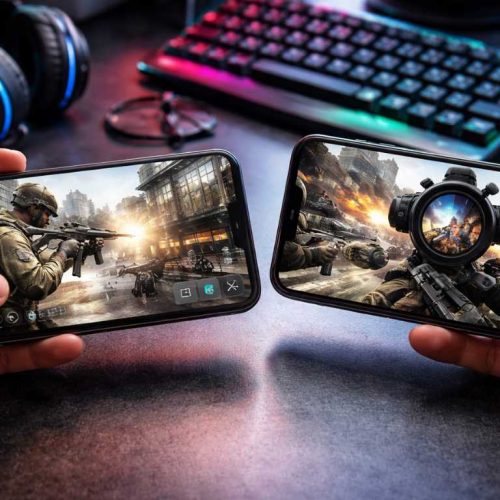
Gesture Mastery and the Claw Grip: Many high-level players use what is known as a “claw grip.” This involves using more than just your thumbs to interact with the screen. By using your index fingers for top-corner buttons while your thumbs handle movement and aiming, you can perform multiple actions simultaneously, such as jumping, aiming, and shooting. This technique is a staple in this Android Game Controls Tutorial for anyone looking to compete in FPS or Battle Royale games.
Sensitivity Calibration: High sensitivity allows for rapid turns but can ruin your precision at long ranges. Most competitive games offer separate sliders for general movement and aiming down sights (ADS). Spend time in practice modes to find the balance that suits your reaction speed. A good rule of thumb is to set your general sensitivity high enough to pull a 180-degree turn with one swipe, while keeping ADS sensitivity low enough for micro-adjustments.
Environmental Factors: Physical obstacles like screen friction or smudges can hinder your performance. Keeping your screen clean is essential. Furthermore, many pros use specialized gaming thumb sleeves. These accessories reduce friction and eliminate the “sticky” feeling caused by moisture, allowing for smoother, more consistent movements on the glass.
The Gamepad Advantage: Console-Quality Precision
While touch controls have improved significantly, they still lack the physical resistance and haptic feedback of a traditional controller. For genres like racing, sports, or third-person action games, a gamepad is often the superior choice. Connecting a controller via Bluetooth or USB-C can instantly transform your phone into a portable console, providing a level of android controls depth that is difficult to achieve otherwise.
The benefits of a physical controller include:
- Tactile Feedback: Physical triggers and buttons provide a satisfying click, confirming that your command was registered without you needing to look at your fingers. This allows your brain to focus entirely on the on-screen action.
- Unobstructed View: By moving your hands off the screen, you regain valuable visual real estate. In many games, thumbs can block up to 20% of the screen, potentially hiding enemies or vital UI elements.
- Ergonomic Longevity: Gamepads are designed for long sessions. They distribute the weight of the device more evenly and reduce the strain on your joints compared to holding a flat glass slab for hours. This is vital for preventing repetitive strain injuries during marathon gaming sessions.
To connect a controller, navigate to your device settings and pair it via the Bluetooth menu. Once connected, many modern titles like Call of Duty Mobile, Rocket League Sideswipe, or Genshin Impact will automatically detect the hardware and update the interface. Some games even allow for deep button remapping within their own settings menus, providing a bespoke gamepad experience.
Why You Need an Android Game Controls Tutorial for Competitive Play
In competitive environments, the difference between the average player and the top-tier professional often comes down to their control configuration. This Android Game Controls Tutorial emphasizes that optimization is not a “set it and forget it” task. As you improve, your needs will change. You might find that your initial sensitivity settings are now too slow for your improved reflexes, or you might realize that your android controls need to be more compact to allow for faster reaction times.
Competitive play also requires an understanding of “input lag.” This is the delay between pressing a button and the action appearing on the screen. While wireless controllers are convenient, they introduce a small amount of latency. For the absolute best performance, using a wired USB-C connection is recommended. This ensures that your android controls are as responsive as possible, giving you the edge in 1-on-1 encounters where every millisecond counts.
Choosing the Right Hardware for Your Setup
Not all controllers are created equal. If you are looking to invest in hardware, consider the following factors to ensure you have the best gamepad for your needs:
Connectivity Type: Bluetooth is the standard and offers great compatibility. However, if you are a serious competitive player, look for controllers that support a direct USB-C connection. This minimizes input latency and often provides a more stable connection in environments with a lot of wireless interference.
Form Factor and Portability: There are two main styles of mobile controllers. The first is the “wrap-around” or bridge style, like the Razer Kishi or Backbone One. These turn your phone into a handheld unit similar to a Nintendo Switch. The second is the traditional “clip-on” style, where your phone sits in a bracket above a standard controller. Bridge controllers are generally more portable and offer better weight distribution.
Battery and Power Management: Wireless controllers require their own power source. Look for models with long-lasting internal batteries. Some bridge controllers offer “pass-through charging,” which allows you to plug a charging cable into the controller to charge your phone while you play. This is an essential feature for long gaming sessions.
Advanced Setups: Keyboard and Mouse Integration
For those who demand the absolute highest level of precision, particularly in first-person shooters, keyboard and mouse setups are an option on Android. This setup is typically achieved through a USB hub or an On-The-Go (OTG) adapter. This moves android controls into the realm of PC gaming, offering unparalleled aiming accuracy through a high-DPI mouse.
While this provides a massive advantage, it comes with caveats. Many developers view keyboard and mouse usage on mobile as an unfair advantage. To maintain balance, some games will detect these peripherals and place you in separate matchmaking pools with other keyboard users or PC players. Others may restrict the use of these peripherals entirely in ranked play. Always check the game’s terms of service and community guidelines before committing to this setup to avoid potential account bans.
Software Mapping: Bridging the Gap
Not every Android game has native controller support. In these cases, software-based mapping tools become necessary. Applications like Mantis Gamepad Pro or Octopus allow you to overlay virtual buttons on your screen that correspond to physical gamepad inputs. This Android Game Controls Tutorial would be incomplete without mentioning these tools, as they open up thousands of additional games to controller play.
Setting up a mapper usually involves enabling Developer Options on your Android device and using a feature called Wireless Debugging. Once set up, you can drag and drop button icons over the game’s touch UI. When you press a button on your controller, the app “taps” that spot on the screen for you. While powerful, these apps can sometimes be finicky and may require re-activation after a device reboot.
Optimizing System Performance for Better Control
Software optimization is just as important as physical input. Even the best controller won’t help if your frame rate is stuttering or your device is overheating. Smooth performance is a prerequisite for effective android controls.
Enable Game Mode: Most modern Android phones from manufacturers like Samsung, OnePlus, and Xiaomi include a built-in gaming suite. Use this to silence notifications, clear background RAM, and lock your screen brightness. This prevents accidental swipes from pulling down the notification shade and interrupting your game.
Refresh Rate and Graphics: If your phone supports a high refresh rate (90Hz, 120Hz, or 144Hz), ensure it is enabled in your system settings. A higher refresh rate makes the game look smoother and significantly reduces the perceived delay between your input and the action on screen. If your device is struggling to maintain a steady frame rate, lower the graphical settings. A stable 60 FPS is always better for control than a stuttering 30 FPS with high-quality textures.
Audio Cues as Control: Don’t rely on your phone’s built-in speakers. High-quality headphones provide spatial audio, allowing you to hear the direction of footsteps or distant gunfire. In many ways, your ears are a vital part of your control system, providing the situational awareness needed to react before you even see an opponent.
Troubleshooting Common Input Issues
If you experience lag or unresponsive android controls, try these quick fixes:
- Restart the device: This clears any background processes that might be interfering with input polling or consuming excessive CPU cycles.
- Check for wireless interference: If using a Bluetooth gamepad, move away from other wireless devices like routers or microwaves that might be crowding the 2.4GHz frequency.
- Reset your button mapping: Sometimes a game update can glitch your custom HUD. Resetting to default and reapplying your settings often fixes alignment issues or unresponsive touch zones.
- Disable accidental touch protection: Some system-level features designed to prevent pocket-dialing can mistakenly block intentional gaming inputs near the edges of the screen. Look for “Accidental touch protection” or “Edge touch rejection” in your display settings and experiment with turning them off.
Genre-Specific Control Strategies
To truly benefit from this Android Game Controls Tutorial, you must tailor your approach to the genre you are playing. Every game type demands a different philosophy regarding android controls.
First-Person Shooters (FPS): Precision is everything. Use a touch controls guide strategy that emphasizes a “claw” layout or use a controller with high-tension thumbsticks. Minimize your dead zones—the area the stick must move before input is registered—to ensure immediate response.
MOBA (Multiplayer Online Battle Arenas): Games like League of Legends: Wild Rift require rapid, accurate tapping for ability casting. Many players prefer touch controls for MOBAs because they allow for faster “skill shot” aiming than a joystick. Ensure your most-used abilities are within easy reach of your dominant thumb.
Racing Games: This is where the gamepad shines. The analog triggers on a controller allow for gradual acceleration and braking, which is impossible on a digital touch screen. If you must use touch, try the tilt-to-steer option, as it provides a more natural range of motion than virtual buttons.
Conclusion: Your Journey to Mastery
Refining your Android Game Controls Tutorial knowledge is a continuous process of trial and error. There is no one-size-fits-all setting; the perfect configuration is the one that disappears during play, leaving only the game behind. By mastering the nuances of touch customization, exploring the precision of a gamepad, and optimizing your device’s internal performance, you turn your smartphone into a professional-grade gaming tool.
Remember that mastering android controls takes time. Muscle memory is built over weeks, not hours. Whether you are following a touch controls guide to improve your screen taps or configuring a pro-level controller, consistency is key. Take the time to experiment with these settings, find the setup that turns your potential into performance, and most importantly, keep practicing. The world of mobile gaming is more competitive than ever, and with the right controls, you are ready to conquer it.