
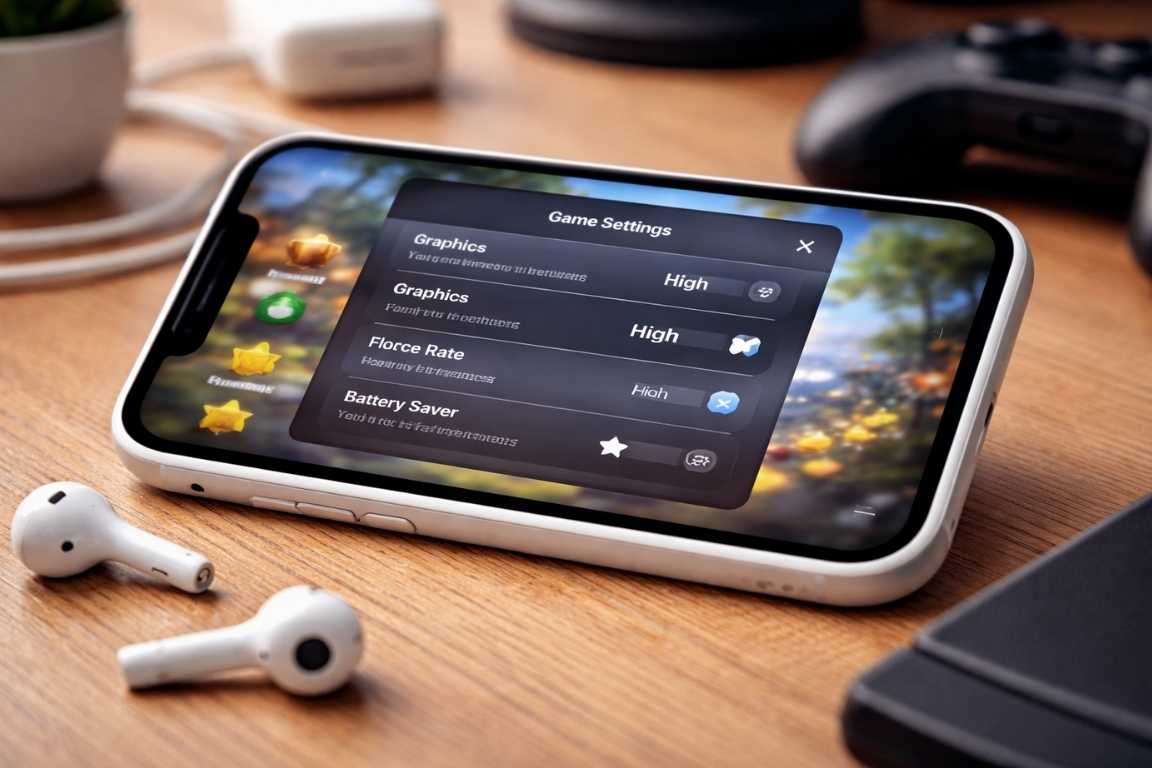
The modern iPhone is more than just a communication device; it is a high-performance gaming console that fits in your pocket. With the introduction of the A-series and M-series chips, Apple has narrowed the gap between mobile and desktop gaming. While Apple’s hardware provides a powerful foundation, the difference between a laggy experience and a competitive edge often lies in how you configure your software. Many players leave significant performance on the table by overlooking the depth of this iOS Games Settings Guide. This comprehensive guide will help you navigate both system-level configurations and in-game options to ensure every session is smooth, responsive, and immersive.
To truly optimize gameplay, one must understand that the iOS ecosystem is designed to balance power efficiency with performance. However, for a gamer, the balance often needs to tilt heavily toward performance. By fine-tuning your iPhone settings, you can unlock higher frame rates, reduce input latency, and maintain a stable connection during intense multiplayer matches. Whether you are playing a high-fidelity RPG like Genshin Impact or a fast-paced shooter like Call of Duty: Mobile, the following strategies will ensure your hardware is working for you, not against you.
Understanding Core iPhone Settings for Superior Gameplay
Before adjusting settings within a specific game, you must prepare the operating system to prioritize your gaming performance. These system-wide adjustments create a stable environment that prevents the hardware from being pulled in too many directions at once. When you ignore these iPhone settings, you risk thermal throttling—a process where the phone slows down to protect its internal components from heat.
Power Management: Keeping Your Game Alive
Low Power Mode: While this feature is excellent for extending battery life during a long workday, it is the absolute enemy of high-performance gaming. Low Power Mode throttles the CPU and GPU, disables ProMotion (on supported models), and reduces background processes. This leads to dropped frames and stuttering. Always ensure this is disabled in Settings under the Battery menu before launching a demanding title.
Battery Health and Peak Performance: High-end games generate significant heat, and heat affects battery longevity over time. Periodically check your Battery Health and Charging settings. If your maximum capacity has dropped significantly, the phone may struggle to provide the peak power required for intense gaming, leading to intentional performance dips. To optimize gameplay in the long term, avoid playing while your phone is under direct sunlight or in high-temperature environments.
Optimized Battery Charging: This feature is designed to reduce battery aging by learning your daily charging habits. If you frequently play while the device is plugged in, monitor this setting to ensure the device isn’t limiting its performance based on perceived charging patterns. For the best game settings iOS experience, using a high-wattage official Apple charger ensures the phone doesn’t have to dip into battery reserves during peak GPU usage.
Minimizing Distractions: Focus on the Fun
Gaming Focus Mode: Nothing ruins a competitive match faster than a full-screen incoming call or a flurry of social media notifications. Use the Focus menu to create a dedicated Gaming profile. This allows you to silence all non-essential alerts and even automate the mode to turn on the moment you launch a specific game. Within this mode, you can also allow repeated calls from favorites just in case of emergencies, ensuring your iOS games settings guide implementation doesn’t cut you off from the world entirely.
Notification Management: If you prefer not to use Focus modes, manually review your notification settings. Disabling banners for high-frequency apps like WhatsApp or Discord will prevent the UI from overlaying your game at critical moments. This is especially important for games that utilize the top area of the screen for maps or health bars.
Advanced iOS Games Settings Guide to Performance
Performance and visuals are the two pillars of a great mobile gaming experience. To get the most out of your device, you need to manage how resources are allocated across the system. This section of our iOS games settings guide focuses on the technical tweaks that provide the smoothest possible frame rates.
Resource Allocation and Background Processes
Background App Refresh: This process allows apps to check for updates and new content while they are not in use. For the best gaming experience, disable this in General settings. When this is active, your iPhone might decide to update a social media feed in the background while you are in a boss fight, causing a micro-stutter that could lead to defeat. Ensuring 100 percent of your system resources are dedicated to your active game is a cornerstone of how to optimize gameplay.
Automatic Downloads: Ensure that the App Store is not set to download updates in the background. A large update starting mid-game can spike your latency and cause significant lag in online multiplayer matches. Furthermore, it consumes CPU cycles that should be reserved for rendering your game.
Display and Brightness: While it might seem counterintuitive, your display settings affect performance. Disable True Tone and Night Shift during gaming sessions. While these features make the screen more comfortable for reading, they require real-time color processing that can marginally impact the GPU’s overhead and, more importantly, can distort the visual clarity and color accuracy of the game’s intended art style.
Deep Dive into In-Game Settings: Unlocking Your Game’s Potential
Once your iPhone is configured at the system level, the next step is to look at the internal game settings iOS options provided within the titles themselves. Modern mobile titles often provide a level of customization similar to PC gaming, allowing you to find the “sweet spot” for your specific iPhone model.
Graphics: Striking the Visual Balance
Frame Rate (FPS): In almost every scenario, you should prioritize frame rate over visual quality. A higher FPS, such as 60 or 120 on ProMotion-enabled devices (iPhone 13 Pro and newer), makes the game feel more responsive and reduces input lag. If a game offers a 60 FPS mode, enable it immediately. The fluidity of motion is much more beneficial for iPhone settings optimization than high-resolution textures.
Graphics Quality: Most games offer presets ranging from Low to Ultra. If you notice your device getting excessively hot or the battery draining too quickly, consider dropping from Ultra to High or Medium. On the relatively small screen of an iPhone, the visual difference between “High” and “Ultra” is often negligible, but the performance stability is highly noticeable. Lowering the resolution can also prevent thermal throttling during extended play sessions.
Visual Effects: Shadows, reflections, and anti-aliasing are the most resource-intensive settings. Shadows, in particular, require significant GPU power to render in real-time. Lowering these individually can provide a massive boost to performance while keeping the core character and environment models looking sharp. Anti-aliasing helps smooth out jagged edges, but if your screen density is high (as it is on all modern iPhones), you can often turn this down without losing much clarity.
Controls: Tailoring Your Interaction
Touch Sensitivity: Sensitivity is entirely subjective and varies from one game to another. Take the time to test your aim or movement in a practice mode. If your movements feel sluggish, increase the sensitivity; if you find yourself over-correcting, dial it back. Many pro players recommend a “high look sensitivity” but a “low ADS (aim down sights) sensitivity” for precision.
Customizable UI (HUD): Many top-tier games allow you to move the buttons on the screen. Adjusting the Heads-Up Display (HUD) to fit your hand size and grip style can prevent fatigue and improve your reaction time. For example, the “claw” grip (using four fingers) requires a very different button layout than the standard two-thumb approach.
Controller Support: For those who find touch controls limiting, iOS has excellent support for PlayStation DualSense, Xbox Wireless Controllers, and third-party MFi (Made for iPhone) controllers like the Backbone One. Utilizing a physical controller can transform the experience, especially in racing games or third-person adventures, and it frees up your screen real estate from being covered by your thumbs.
Audio and Connectivity: The Final Pieces of the Puzzle
To truly optimize gameplay, you cannot ignore the sensory and connectivity aspects. Sound and data stability are just as important as frame rates when it comes to winning.
Audio: The Unsung Hero of Immersion
In competitive gaming, audio is a tool. Reducing the background music volume while keeping sound effects high allows you to hear footsteps, reloads, and other environmental cues more clearly. If you use compatible headphones like AirPods Pro, enabling Spatial Audio can provide a 360-degree soundstage that helps you locate opponents by sound alone. However, be wary of Bluetooth latency; while Apple’s H1 and H2 chips minimize lag, serious competitive players might still prefer a lightning-to-3.5mm adapter for zero-latency wired audio.
Network and Connectivity
A fast connection is meaningless if it is unstable. Whenever possible, play on a 5GHz or 6GHz Wi-Fi band rather than cellular data. This provides lower latency (ping), which is essential for any real-time interaction. If you must use cellular data, ensure that “5G Standalone” is enabled in your iPhone settings if your carrier supports it, as this provides a more consistent connection for gaming.
Additionally, if you use a VPN, consider turning it off while gaming. The extra routing steps of a VPN increase your ping, which can lead to “rubber-banding” in online matches. For the most stable connection possible, some gamers even use a USB-C to Ethernet adapter to hardwire their iPhone directly to their router.
Storage and Maintenance: Keeping the Engine Clean
An iPhone with nearly full storage often performs slower because it lacks the space needed for temporary cache files and “swap” memory. To optimize gameplay, ensure you have at least 10 percent of your total storage capacity free. Go to Settings > General > iPhone Storage to see which apps are hogging space. You can “Offload” unused apps to keep your data while freeing up the space the app itself occupies.
Regularly clearing the cache in specific games (if the option exists in the game’s own settings menu) can also prevent long loading times and random crashes. Think of this as a “digital tune-up” for your mobile gaming rig.
Accessibility Settings for Gaming Comfort
The Accessibility menu in iPhone settings offers several hidden benefits for gamers. Touch Accommodations can help if you find yourself making accidental taps, while Guided Access can lock your phone into a single app. This is a game-changer because it prevents you from accidentally swiping the “Home Bar” and exiting the game in the middle of a frantic battle. To enable this, go to Settings > Accessibility > Guided Access and triple-click the side button once your game is open.
Specific Settings by Genre
Every genre has different requirements. Here is how to apply this iOS games settings guide based on what you play:
- First-Person Shooters (FPS): Prioritize the highest possible frame rate (120 FPS if available) and minimal graphical clutter. High sensitivity and optimized button layouts are key here. Turn off motion blur to maintain clarity during fast turns.
- Role-Playing Games (RPGs): These are often visually stunning. You can usually trade some frame rate for higher resolution and better lighting effects to enhance the story and atmosphere. 30 FPS is often acceptable if it means seeing the world in full “Ultra” detail.
- Racing Games: Focus on a stable frame rate to ensure your steering inputs are registered precisely. If you use “tilt-to-steer,” make sure your gyroscope is calibrated and that you are sitting in a comfortable position that allows for a full range of motion.
- Strategy and Card Games: These are less demanding on the GPU. You can often turn down almost all graphics settings to “Low” to save massive amounts of battery life without affecting the core gameplay experience.
Frequently Asked Questions
Why does my iPhone get hot when playing games?
Intensive games tax the hardware, which generates heat. If the device gets too hot, it will dim the screen and slow the processor (thermal throttling) to cool down. To avoid this, remove your phone case during long sessions and avoid playing in direct sunlight. Using a dedicated phone cooling fan can also help.
Can I improve battery life without losing performance?
The best way is to lower the screen brightness and turn off background features like Bluetooth (if not using headphones) and Background App Refresh. Lowering the in-game graphics slightly—specifically the resolution—will also reduce the strain on the battery without necessarily dropping your frame rate.
Is 120 FPS worth the battery drain?
For competitive titles like shooters or fighting games, yes. The increased fluidity provides a tangible advantage in reaction time. For slower, turn-based games, 60 FPS or even 30 FPS is sufficient and will save significant battery life.
Does “Reduce Motion” in accessibility help gaming?
No, this primarily affects the iOS system animations (like opening and closing apps). It has no direct impact on the performance within a game engine.
Conclusion
Optimizing your iOS Games Settings Guide is about finding the perfect equilibrium between the power of your device and the demands of the software. By taking a few minutes to configure your iPhone settings and fine-tuning the game settings iOS options within each title, you can transform your device into a professional-grade gaming machine. Remember that performance is a moving target; as games receive updates and iOS versions change, you should revisit these settings to ensure you are still getting the best experience possible. Experiment with these configurations to see what works best for your specific model and playstyle. Victory is often a matter of seconds, and these optimizations ensure those seconds are always in your favor.