
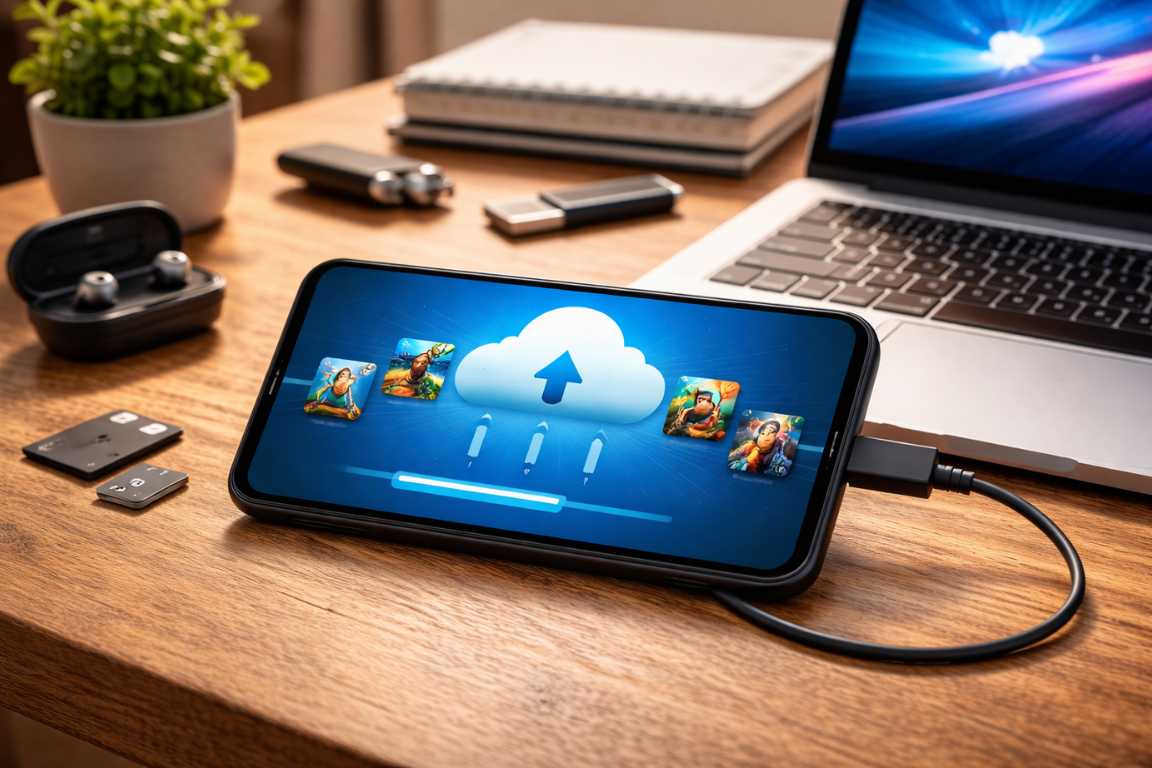
There is a specific kind of heartbreak that comes from launching a favorite mobile game only to find that months of progress have vanished into thin air. Whether you have spent weeks conquering levels, unlocking rare achievements, or building a complex digital empire, that effort is often more fragile than most users realize. Data loss can occur in an instant due to a factory reset, a lost or stolen device, or a simple application corruption after a system update. Knowing how to backup Android games is an essential skill for any dedicated mobile gamer who wants to ensure their hard-earned progress remains safe and accessible, regardless of what happens to their physical hardware.
In this extensive guide, we will explore the various methodologies available to secure your gaming data. From seamless automated solutions like Google Play Games to manual file management for advanced users, this article provides a roadmap to securing your digital legacy. By the end of this guide, you will be equipped with the knowledge to handle any game backup situation and effectively restore games whenever you switch devices or perform a system wipe.
Why Learning How to Backup Android Games Is Essential
Protecting your digital assets is a fundamental part of modern device management. A robust backup strategy offers peace of much-needed peace of mind against several common scenarios that plague mobile users. Many gamers assume that simply installing a game ensures their data is safe, but that is rarely the case unless specific steps are taken.
Hardware failure remains one of the most common reasons for data loss. Smartphones are portable and prone to being dropped, submerged in water, or physically damaged beyond repair. Without an external backup, your local save data disappears with the physical circuitry of the device. Furthermore, factory resets are often necessary to resolve performance lag or software bugs. While a reset can make your phone feel like new, the process wipes all internal data indiscriminately, including your game progress.
Another major factor is the frequency of device upgrades. When moving to a newer Android model, you should be able to pick up exactly where you left off rather than starting from the tutorial. Finally, application corruption can occur during a poorly optimized update. Having a fallback version of your data through a reliable android cloud save or local copy is the only way to recover from these technical glitches without starting over from scratch.
Understanding the Types of Android Game Save Data
To choose the right backup method, you must first understand where your progress lives within the Android file system. Android game data generally falls into two distinct categories, each requiring a different approach for protection.
Local Saves: This data is stored directly on the internal storage of your device. It includes configuration settings, character stats, and progress files. These are the most vulnerable files because they exist only on your physical phone. In many cases, these files are hidden within system folders that are not easily accessible without a dedicated file manager or administrative privileges.
Cloud Saves: Many modern titles utilize cloud synchronization, typically through the android cloud save infrastructure provided by Google Play Games or the developer’s own servers. This method links your progress to a specific account, such as your Google, Facebook, or dedicated developer ID. This is the most seamless way to manage data across multiple platforms and devices.
The size and type of the data—ranging from small text-based save files to massive expansion packs known as OBB (Opaque Binary Blob) files—will dictate which backup method is most effective for your specific needs. Large-scale RPGs may have gigabytes of assets that need different handling compared to a simple puzzle game.
Method 1: Utilizing Google Play Games for Automated Backup
For the vast majority of players, Google Play Games is the most convenient and efficient solution. It provides an automatic cloud sync feature for supported titles, making it the primary answer for most people asking how to backup Android games without technical hassle.
How it Works: When you play a game linked to your Google profile, your progress is synced to the cloud in the background. If you reinstall the game or switch to a new phone, your progress downloads automatically once you log in with the same Google credentials. This service is free and integrated into almost every Android device.
Checking for Support: To ensure your game is actually saving to the cloud, open the Google Play Games app and navigate to the specific game in your library. Look for a small green cloud icon or a label that says Saved Games. Most games will also prompt you to sign in to Google Play Games when you first launch them. If you declined this initially, you could usually find the option within the game’s internal settings menu.
Advantages: It is entirely automatic, requires no manual file management, and is accessible from any Android device worldwide. It is the gold standard for convenience.
Limitations: Not every developer supports this feature. Some developers prefer their own proprietary systems, while others (especially in the indie space) may not include cloud saving at all. Additionally, this method generally only backs up your progress data, not the actual application files or large OBB expansion packs.
Method 2: Manual Local Backup with a File Manager
If a game does not support an android cloud save, you can take a hands-on approach using a file manager. This involves copying the raw data files from your device to a secure location like a PC, an SD card, or a cloud drive like Google Drive or Dropbox.
Required Tools: You will need a robust file manager app. While the built-in Files app on many phones is sufficient, third-party apps like Solid Explorer or FX File Explorer offer better visibility into system directories. You will also need a destination for your game backup, such as a high-speed SD card or a connected computer.
Common Data Locations:
1. Internal Storage/Android/data: This folder holds application-specific data. Look for folders named after the game package, which usually follow a reverse-domain naming convention like com.developername.gametitle.
2. Internal Storage/Android/obb: This folder stores large expansion files. You may need to backup these if the game requires a large initial download and you want to avoid re-downloading it on a new device.
Backup Steps: Use your file manager to locate the game folder within the Android/data directory. Copy this entire folder to your external storage. This method offers total control but requires you to identify the correct folders manually. It is worth noting that since Android 11, Google has implemented Scoped Storage, which restricts access to the Android/data folder for many apps. You may need to use a PC or a specific file manager that has been granted special permissions to access these folders.
Method 3: Third-Party Backup Applications
Specific applications are designed to automate the process of creating a game backup and securing associated data. These are particularly useful if you have dozens of games and do not want to copy folders manually for each one.
Helium (formerly Carbon): This is an excellent option for users who do not want to root their devices. Helium allows you to backup data to an SD card or a computer. For non-rooted users, it requires a desktop companion app and a USB connection to initialize the backup service every time the phone restarts. Once initialized, it can backup your app data seamlessly.
Swift Backup: This is a modern favorite among the enthusiast community. It offers a clean interface and the ability to backup apps, SMS, call logs, and wallpapers. For game data specifically, it can upload your backups directly to cloud services like Google Drive, Dropbox, or OneDrive.
Titanium Backup: For users with rooted devices, this remains the historical standard, though it is showing its age. It can backup every single aspect of an application, including system links and internal settings, allowing for a total restoration of your digital environment. However, rooting your device carries security risks and may void your warranty, so this is only recommended for advanced users.
Method 4: PC-Based Backup and ADB Solutions
Advanced users often prefer managing their backups via a computer for extra security and faster transfer speeds. This is one of the most reliable ways to answer the question of how to backup Android games when the phone itself is being temperamental.
Android Debug Bridge (ADB): This command-line tool is part of the Android SDK Platform-Tools. It allows you to create a complete snapshot of an application and its data without needing root access. By using the command adb backup -f filename.ab -apk com.package.name, you can create a secure backup file on your computer. While powerful, this requires a basic understanding of command-line interfaces and enabling Developer Options on your phone.
Manufacturer Software: Companies like Samsung and Xiaomi provide proprietary software such as Samsung Smart Switch or Mi PC Suite. These programs are designed to facilitate transitions between devices. They often include comprehensive options to backup all installed apps and their associated data. If you are staying within the same brand ecosystem, these manufacturer tools are often the most reliable way to restore games without losing a single frame of progress.
How to Restore Games on Your Android Device
A backup is only as good as your ability to use it. When the time comes to restore games, the process depends entirely on which backup method you originally employed. Here is a breakdown of the recovery steps for each major method.
Restoring via Google Play Games: This is the simplest path. Simply install the game from the Play Store and launch it. Ensure you are signed into the correct Google account. The app will detect your android cloud save and prompt you with a message asking if you want to load your previous progress. Confirm the selection, and the game will sync your data in seconds.
Restoring Manual Backups: To restore a manual folder copy, you should first install the game from the Play Store to ensure the system creates the necessary folder structure. Once installed, do not open the game. Instead, use your file manager to move your backed-up folder back into the Android/data directory, overwriting the existing (empty) folder. Once the files are in place, launch the game, and it should recognize the existing save state.
Restoring with Third-Party Apps: Open your backup utility (like Helium or Swift Backup), navigate to the Restore tab, and select the games you wish to recover. These apps handle the folder placement and permission settings for you, making it much faster than the manual method.
Best Practices for Game Data Protection
To ensure your progress is always safe, follow these professional standards for data management. Consistency is the key to preventing permanent data loss.
Perform Regular Backups: Do not wait for a disaster to happen. Schedule a weekly or monthly backup, especially after reaching significant milestones or completing difficult levels in a game. If you are a heavy gamer, a weekly routine is highly recommended.
Use the Rule of Redundancy: Follow the 3-2-1 backup rule. Have at least three copies of your data, store them on two different media types (e.g., your phone and your PC), and keep at least one copy off-site (e.g., in the cloud). Store one game backup on your physical computer and another in a service like Google Drive.
Verify Your Backups: Periodically attempt to restore a small, non-essential game to a secondary device or an emulator. This ensures that your backup files are not corrupted and that you actually know the steps required for a successful restoration. There is nothing worse than discovering a backup file is unreadable when you actually need it.
Utilize Developer-Specific Accounts: Many major publishers, such as Supercell (Supercell ID), Ubisoft (Ubisoft Connect), and Activision, offer their own cross-platform account systems. Always link these accounts when available. They are often more robust than general system tools and allow you to move your progress between Android and iOS seamlessly.
The Challenges of Scoped Storage in Modern Android
As Android has evolved, Google has prioritized user privacy and security through a feature called Scoped Storage. Introduced prominently in Android 11 and refined in subsequent versions, this feature limits how applications can interact with the files of other applications. For the average user, this means that the Android/data folder is now largely invisible to standard file managers downloaded from the Play Store.
To bypass this when performing a manual game backup, you may need to connect your phone to a Windows PC or Mac via USB. When the phone is in File Transfer mode, the computer can usually see the full contents of the Android/data folder, allowing you to drag and drop folders to your desktop. If you must do it on the device, look for file managers that specifically mention Android 13 or 14 compatibility, as they often use workarounds to gain temporary access to these restricted directories.
Frequently Asked Questions
Do all Android games support cloud saving?
No. While it is a standard feature in most popular and high-budget titles, older games or those developed by small teams may rely solely on local storage. Always check the game’s settings menu for a cloud sync or account linking option to be sure.
Is rooting my phone necessary for backups?
No, rooting is not necessary for most users. While rooting offers deeper access for tools like Titanium Backup, the combination of Google Play Games, manual file copying via PC, and Helium is more than enough for 95% of players to successfully learn how to backup Android games.
Where exactly are my save files located?
Most apps store saves in Internal Storage/Android/data. However, some games may store data in a hidden folder in your root directory or within a subfolder of the Documents or Download directory. If you cannot find the files, a quick search for the game’s title in a file manager usually reveals the hidden path.
Can I move saves between different brands of phones?
Yes. Android cloud save data via Google Play Games or developer-specific accounts works across all Android brands. Manual file transfers also work perfectly, provided you place the folders in the correct directories on the new device and the game versions match.
What should I do if my game doesn’t have an export feature?
If the game lacks an internal export or cloud save feature, your best bet is to use the PC-based ADB backup method or a manual folder copy of the Android/data directory. These methods capture the files that the app itself doesn’t offer to the user.
Conclusion
Securing your gaming progress does not have to be a technical burden or a source of anxiety. By combining the ease of android cloud save synchronization with the reliability of manual local backups, you can protect your digital achievements against hardware failure, theft, and accidental deletion. Whether you are preparing for a new phone upgrade or simply want to safeguard your investment of hundreds of hours into a virtual world, a proactive strategy is the only way to ensure your journey continues exactly where you left off.
Remember that the mobile landscape always changes, and software updates can occasionally change how apps store data. Stay informed, use multiple backup locations, and take the time to learn how to backup Android games today. By following the steps outlined in this guide, you can play with confidence, knowing that your progress is safe, secure, and ready to be restored whenever you need it.