
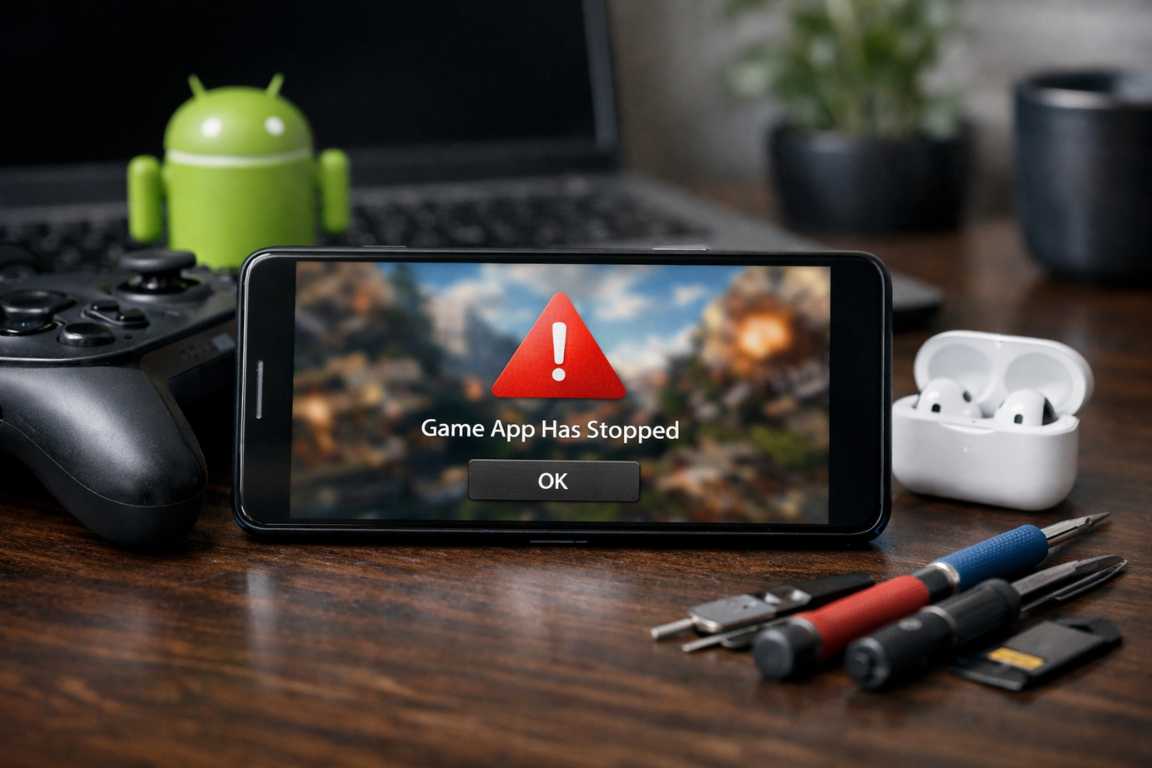
Few things disrupt a gaming session like a sudden freeze just as you are about to reach a new high score or defeat a final boss. As mobile games evolve into sophisticated experiences that rival traditional consoles, the technical demands on our devices have increased significantly. While these advancements bring stunning visuals and complex mechanics, they also open the door to technical glitches. This guide provides a clear roadmap to diagnosing and resolving the most common issues, ensuring you spend less time troubleshooting and more time playing. Utilizing these Android Games Troubleshooting Tips will help you maintain your device in peak condition for any gaming challenge.
The landscape of mobile gaming has shifted from simple puzzles to massive multiplayer online role-playing games (MMORPGs) and high-fidelity shooters. With this shift comes the necessity for robust hardware and optimized software. When your device struggles to keep up, you experience errors and crash issues that can ruin the immersion. Understanding the underlying architecture of how Android handles gaming processes is the first step in learning how to fix android games effectively. Whether you are using a flagship device or a budget-friendly model, the principles of optimization remain the same.
Understanding Common Android Game Errors and Their Causes
Before jumping into solutions, it is helpful to understand why a game might fail. Performance issues and crashes usually stem from a handful of recurring factors. Identifying the specific symptoms of your problem is the first step toward a permanent fix. Most errors are not random; they are the result of specific resource conflicts or software incompatibilities that can be systematically addressed.
The Nature of Force Closes and Freezes
A force close occurs when the Android system detects a critical error and shuts the application down instantly, sending you back to the home screen. Freezes are slightly different, occurring when the software becomes unresponsive while remaining on screen. Both crash issues are typically linked to strained device resources, such as an overloaded processor or exhausted RAM. This happens most often when high-end games run alongside too many background applications or when there is a fundamental conflict between the game software and the operating system. When the Random Access Memory (RAM) is filled to capacity, the Android kernel must decide which process to kill to keep the system stable; often, the most resource-heavy app—the game—is the first to go.
Network Related Issues and Latency
Modern mobile gaming relies heavily on connectivity. Whether a game requires a constant sync for multiplayer matches or a quick check for license verification, a weak signal can cause significant errors. Lag, high ping, and random disconnections are rarely the fault of the device hardware. Instead, they usually point to an unstable Wi-Fi signal, congested mobile data, or temporary server outages on the developer’s end. Packet loss is another silent killer of gaming performance, where data sent between your phone and the server disappears, leading to “rubber-banding” where your character teleports back to a previous position.
Storage and Performance Bottlenecks
Your device needs breathing room to function. When internal storage is nearly full, the system struggles to write temporary files or download essential updates, leading to stuttering and instability. Furthermore, intense gaming generates heat. When a device becomes too hot, the system automatically slows down the processor to cool off, a process known as thermal throttling. This results in a noticeable drop in frame rates and overall responsiveness. Understanding these bottlenecks is essential to applying the right Android Games Troubleshooting Tips.
Initial Steps to Fix Android Games Immediately
Many technical hurdles can be cleared with a few basic actions. Before moving to complex settings, try these fundamental fixes that address the majority of minor software glitches and crash issues. Often, the simplest solution is the most effective because it resets the environment in which the game operates.
The Power of a System Restart
It may seem like an overly simple suggestion, but restarting your device is a highly effective troubleshooting step. A reboot flushes the system RAM, terminates stubborn background processes, and clears out temporary software conflicts. Turn your device off completely, wait thirty seconds, and then power it back on to give your hardware a fresh start. This “cold boot” ensures that no lingering data fragments from previously closed apps interfere with your current gaming session.
Verifying Your Network Stability
For games that require an active connection, verify that your signal is strong. You can toggle your Wi-Fi or mobile data off and on to reset the connection. If you are at home, restarting your router can often resolve persistent latency errors. If the problem continues, try switching between Wi-Fi and cellular data to determine if the issue is specific to one network. Additionally, check if other devices on your network are consuming high bandwidth, such as streaming 4K video or downloading large files, as this can starve your game of the necessary data throughput.
Prioritizing Software Updates
Developers frequently release patches to address known bugs and optimize performance. If your game is crashing, check the Google Play Store to see if an update is available. Similarly, keeping your Android operating system up to date ensures that your device has the latest security patches and compatibility drivers required for modern gaming. Often, an OS update includes improvements to the “Android System WebView” or “Google Play Services,” both of which are critical components that games rely on to function correctly.
Advanced Android Games Troubleshooting Tips for Persistent Crashes
If basic restarts and updates do not resolve the problem, you may need to look closer at how the game interacts with your device’s storage and memory. This is where we delve into the deeper settings of the Android environment to fix android games that refuse to cooperate.
Managing App Cache and Data
Every app stores temporary files known as cache to help it load faster. Over time, these files can become corrupted, leading to significant crash issues. Clearing the cache is a safe way to fix minor errors without losing your game progress. To do this, navigate to Settings > Apps > [Your Game] > Storage and tap “Clear Cache.” If that fails, you can clear the app data, which resets the game to its original state. Use caution with this second option, as it will delete local save files unless your progress is synced to a cloud service like Google Play Games or an external developer account.
The Clean Reinstall Method
If a game continues to fail despite clearing the cache, the installation itself might be compromised. This can happen during an interrupted download or a failed update. Uninstalling the game and downloading a fresh copy from the Play Store ensures that any missing or broken files are replaced with functional ones. This is often the most effective way to solve deep-seated stability issues that refuse to respond to other Android Games Troubleshooting Tips.
Optimizing Storage and Memory
Android devices require at least ten to fifteen percent of free storage space to maintain peak performance. This space is used for “swap files” and virtual memory. If your storage is full, delete unused apps, clear out large video files, or move photos to a cloud service. Additionally, before starting a demanding game, manually close other open applications to ensure the game has full access to the device’s RAM. You can use the “Recent Apps” button and swipe away all other entries to provide a clean slate for your gaming experience.
Hardware Management and Graphics Adjustments
If your phone feels hot to the touch or the game feels sluggish, you may be pushing the hardware too hard. Many high-end games offer internal settings to adjust graphics quality. Lowering the resolution, reducing the frame rate cap (from 60 FPS to 30 FPS), or disabling advanced visual effects like shadows and anti-aliasing can significantly reduce the load on your processor. This results in a much smoother and cooler gaming experience, effectively preventing errors caused by thermal limits.
Addressing Specific Mobile Gaming Challenges
Some problems are specific to certain features, such as purchases or saved progress. These require a more targeted approach than general performance fixes. When dealing with specialized crash issues, you must look at the services that support the game rather than just the game itself.
Fixing In-App Purchase Errors
If a transaction fails to process, first verify that your payment method is current and has sufficient funds. Often, clearing the cache of the Google Play Store app itself can resolve communication errors between the game and the payment gateway. To do this, go to Settings > Apps > Google Play Store > Storage > Clear Cache. If a purchase goes through but the items do not appear, the “restore purchases” button in the game settings is usually the quickest fix. If all else fails, checking the Google Play order history can confirm if the transaction was actually successful.
Preventing Save Data Loss
Data corruption can be a major setback, potentially erasing hundreds of hours of gameplay. The best defense is to ensure that every game you play is linked to a cloud account. This protects your progress even if you have to wipe the app data or switch to a new phone. Most games use Google Play Games for this purpose. If a local save becomes corrupted and there is no cloud backup, reaching out to the game developer with your User ID is often the only remaining option. They may be able to restore your account from their server-side backups.
Advanced System Tweaks for Enthusiasts
For users who want to go beyond the standard Android Games Troubleshooting Tips, there are hidden settings within the Android OS that can provide a performance boost. These settings are found in the “Developer Options” menu.
Enabling Developer Options
To access these settings, go to Settings > About Phone and tap “Build Number” seven times until you see a message saying “You are now a developer.” Once enabled, you can find the new menu under Settings > System. Here, you can find options like “Force 4x MSAA” which improves image quality in some games, though it may increase battery drain. More importantly, you can find “Background process limit,” which allows you to restrict how many apps can run in the background, ensuring more resources are dedicated to your active game.
Adjusting Animation Scales
While not a direct fix for crash issues, reducing “Window animation scale,” “Transition animation scale,” and “Animator duration scale” to 0.5x can make the entire OS feel faster and more responsive. This reduces the time the system spends rendering UI transitions, allowing it to focus more quickly on launching and running your games. These tweaks are excellent ways to fix android games performance on older hardware that might be struggling with the latest OS updates.
Managing Device Temperature
Heat is the enemy of performance. If your device is overheating, the internal components will slow down to prevent permanent damage. If your device is overheating, remove any protective cases that might be trapping warmth. Some heavy-duty cases are excellent for protection but act like insulation for the heat generated by the battery and CPU. Avoid playing while the phone is charging, as the charging process generates its own heat. If the device becomes uncomfortably warm, take a ten-minute break to let the internal components return to a safe operating temperature. Using a dedicated phone cooler or playing in a cool environment can also mitigate errors related to heat.
Seeking External Support
When internal troubleshooting is not enough, there are several resources available to help you find a solution. No gamer is an island, and the collective knowledge of the community is one of the best Android Games Troubleshooting Tips available.
Consulting with Developers and Communities
Most major games have dedicated support teams reachable through an in-game menu or a website. When contacting them, provide your device model, Android version, and a clear description of the errors. Additionally, community forums like Reddit or Discord are excellent places to find workarounds from other players who may have encountered the same crash issues on similar hardware. Often, a specific bug might be known to the community before the developers have officially acknowledged it.
Frequently Asked Questions
Why does my game close automatically without an error message?
This is usually a sign that the device has run out of available RAM. The Android system closes the most demanding app to prevent the entire phone from crashing. This is a protective measure by the OS. Closing background apps and clearing your RAM before playing usually prevents this and helps to fix android games that behave this way.
Will I lose my progress if I clear the app cache?
No. Clearing the cache only removes temporary files used to speed up loading. However, clearing the “app data” will remove your progress and settings unless they are backed up to the cloud. Always ensure your account is synced before clearing data.
Can a slow microSD card cause game crashes?
Yes. If a game is installed on a slow external card (Class 4 or lower), the data transfer speeds may not be fast enough to keep up with the game’s engine. This leads to asset loading errors and crash issues. Moving the game to internal storage often solves this immediately.
What should I do if my game is stuck on the loading screen?
This usually indicates a failure to connect to the game servers or a corrupted save file. Try switching your connection from Wi-Fi to Data or vice versa. If that doesn’t work, clearing the cache is the next best step.
Conclusion
Technical interruptions do not have to end your fun. By following a systematic approach—starting with simple restarts and moving toward data management and hardware optimization—you can resolve the vast majority of Android gaming errors. Staying proactive with software updates and maintaining healthy storage habits will ensure your device remains a reliable platform for all your mobile adventures. Turn these Android Games Troubleshooting Tips into a routine, and you will spend much more time enjoying your games and less time staring at a frozen screen. Remember, a well-maintained device is the key to a lag-free, immersive gaming experience. Whether you are battling in a virtual arena or building a digital empire, these steps will keep your crash issues at bay and your performance at its peak.