
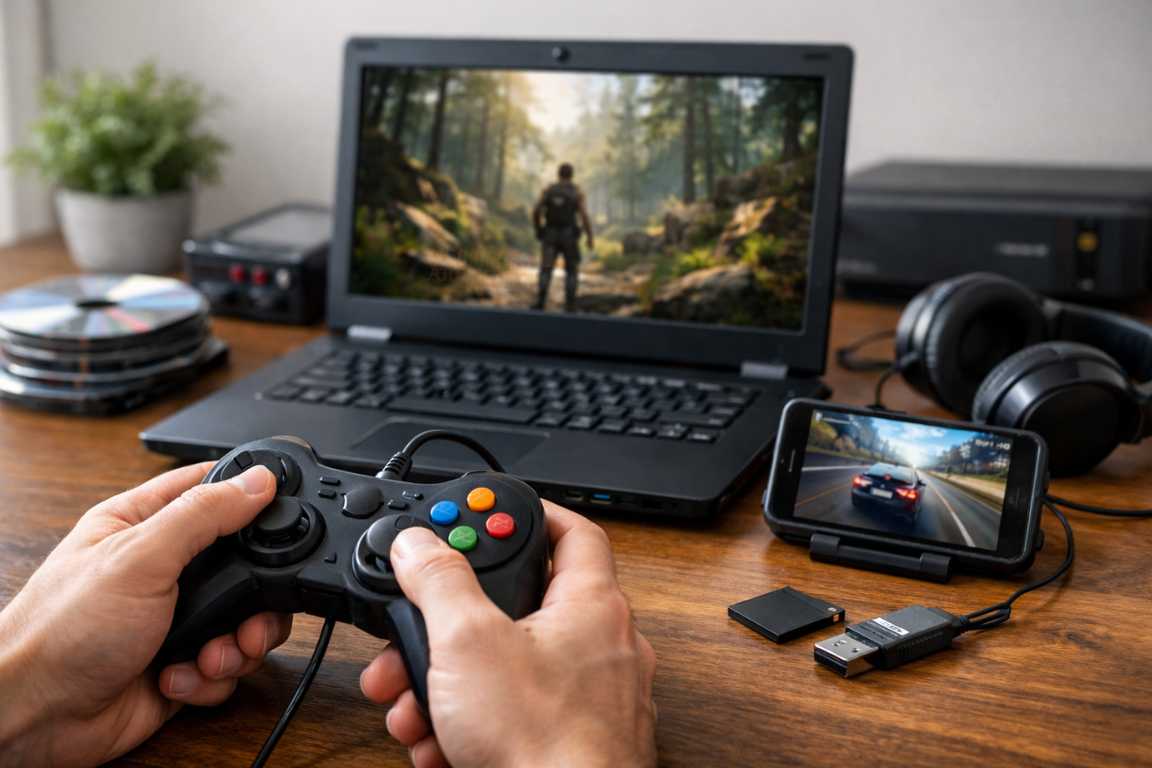
A top-tier gaming rig is a luxury that many aspire to, but it is certainly not a requirement for a meaningful and immersive gaming experience. While the modern gaming industry often focuses on resource-heavy graphics, ray tracing, and demanding system requirements, high-quality entertainment remains accessible to those with modest hardware. The challenge for many users lies not in finding great titles, but in ensuring those titles run without the frustration of stutters, crashes, or low frame rates. This comprehensive guide provides a detailed roadmap for optimizing your system and software settings. By following these Tips to Play Low-End Games Offline, you can achieve a seamless, lag-free adventure on almost any machine, regardless of its age or specifications.
Implementing practical system tweaks and intelligent in-game adjustments allows you to unlock hundreds of hours of entertainment from your existing hardware. Whether you are using an old office laptop or a decade-old desktop, the goal is smooth play through careful management of limited resources. Understanding how your computer processes data and renders images is the first step toward transforming a sluggish machine into a functional gaming station. This article explores everything from basic operating system maintenance to advanced configuration file editing, ensuring you have the tools to fix lag once and for all.
Essential Tips to Play Low-End Games Offline: System Foundations
Before exploring specific game optimizations, it is essential to understand the capabilities and limitations of your hardware. Identifying bottlenecks and addressing them at the operating system level can significantly enhance performance for offline low-end games. A well-optimized environment provides a stable foundation, ensuring that hardware resources are dedicated to the task at hand rather than being wasted on unnecessary background processes that provide no benefit to the gamer.
Mastering Resource Management
The most immediate way to improve performance is to reclaim the resources currently being used by your operating system. Even if you aren’t actively using a program, it may be consuming “cycles” from your CPU or occupying space in your RAM.
- Close Background Applications: Even minor programs running in the background can consume precious CPU, RAM, and GPU resources. Before launching a game, make it a habit to close web browsers, communication tools, and non-essential software. A single open tab in a modern browser can sometimes consume more memory than a game from 2010.
- Disable Unnecessary Startup Programs: Many applications launch automatically when your computer starts. Access the Task Manager via Ctrl+Shift+Esc, navigate to the Startup tab, and disable programs you do not need immediately. This frees up memory from the moment you boot the system, ensuring your offline low-end games have the largest possible pool of resources to draw from.
- Update Graphics Drivers: Outdated drivers are a common cause of poor performance and visual glitches. Regularly check for and install the latest updates for your integrated or dedicated graphics card. Even for older hardware, manufacturers occasionally release updates that provide a much-needed lag fix or improve compatibility with certain game engines.
Optimizing Power and Storage
How your computer manages power and accesses data can have a profound impact on how smoothly a game runs. This is particularly true for laptops, which often prioritize battery life over performance by default.
- Adjust Power Settings: Ensure your computer is set to the High Performance profile in the Windows Power Options. While this may increase power consumption and fan noise, it prevents the system from “throttling” components to save energy. Throttling is a major cause of stuttering, so keeping your hardware running at full capacity is vital for smooth play.
- Defragment Your Hard Drive: If your system uses a traditional Hard Disk Drive (HDD), fragmentation can slow down data access significantly. Regularly defragmenting the drive helps the system retrieve game files more efficiently. Note that Solid State Drive (SSD) users should avoid this, as it does not improve SSD performance and can actually reduce the drive’s lifespan.
- Clean Up Disk Space: A cluttered drive can impact overall system responsiveness. Uninstall unused programs, delete temporary files, and move large media to external storage. Aim to keep at least 15 to 20 percent of your drive space free so the operating system has room for “swap files” and temporary data processing.
In-Game Settings: Your Primary Toolkit for Improved Performance
Once the operating system is primed, the most impactful adjustments for smooth play will happen within the game’s own settings menu. Developers frequently include a variety of graphical options to accommodate different hardware configurations. Understanding which settings to prioritize can be the difference between a frustrating, slideshow-like experience and a fluid, enjoyable one.
Prioritizing Performance Over Visuals
When working with limited hardware, you must accept that you cannot run games at “Ultra” settings. However, by strategically lowering specific settings, you can maintain a decent visual experience while drastically increasing your frame rate.
- Resolution: This is the single most critical setting for performance. Lowering the resolution reduces the total number of pixels the graphics card must render every second. Experimenting with resolutions like 1280×720 or 1024×768 can provide a massive boost on weak hardware. While the image may look slightly softer, the increase in fluidity is often a necessary trade-off.
- Texture Quality: Textures are the detailed images applied to 3D models. Lowering this setting reduces the amount of video memory (VRAM) required. If your textures exceed your available VRAM, the game will start swapping data with your slower system RAM, causing massive stutters. Lowering textures is a key lag fix for older cards.
- Shadow Quality: Rendering dynamic shadows is computationally expensive for the GPU. Reducing shadow quality or disabling them entirely can significantly increase frame rates with minimal impact on the actual gameplay mechanics.
- Anti-Aliasing: This feature smooths out “jagged” edges on objects. While it improves visual fidelity, it is very demanding. Turning it off or using a very basic setting like FXAA can reclaim a significant amount of processing power.
Additional Graphical Tweaks
Beyond the basics, several other settings contribute to the overall load on your system. Disabling these is one of the top Tips to Play Low-End Games Offline because they often provide purely aesthetic enhancements at a high performance cost.
- View Distance: This determines how far into the distance objects are rendered. Lowering this can help performance significantly in open-world games. Just ensure it does not negatively impact your ability to see important gameplay elements like enemies or objectives.
- Post-Processing Effects: Features like bloom, motion blur, depth of field, and ambient occlusion add visual flair but come at a high cost. Disabling these usually results in a noticeable performance lift and can sometimes even make the game look “cleaner” on lower resolutions.
- Vertical Synchronization (V-Sync): V-Sync prevents screen tearing by capping the frame rate to your monitor’s refresh rate. However, it can introduce significant input lag. If your frame rate is already unstable, disabling V-Sync may lead to a more responsive feel, even if it results in some visual tearing.
Choosing the Right Offline Low-End Games
While optimization is effective, some games are inherently better suited for low-end hardware. Focusing on titles known for modest requirements can save you a significant amount of time and frustration. There is a vast library of games that prioritize deep mechanics, complex systems, and engaging stories over cutting-edge visuals.
Categories of Games Ideal for Low-End Systems
If you want to ensure smooth play from the start, consider looking into the following genres, which traditionally demand less from your hardware:
- Retro and Indie Games: Many older titles and modern indie games are designed with lower specifications in mind. Pixel art games, 2D platformers, and side-scrollers often run flawlessly on even the most basic integrated graphics chips.
- Strategy and Turn-Based Games: These genres typically do not require high frame rates or complex real-time rendering. Because the focus is on tactical decision-making rather than twitch reflexes, a lower frame rate is much more tolerable.
- Classic Titles from the 1990s and 2000s: Iconic games like Half-Life 2, Morrowind, or the original Age of Empires II were optimized for the hardware of their era. They remain highly playable today and offer hundreds of hours of content without requiring a modern GPU.
- Text-Based Adventures and Visual Novels: If your hardware is extremely limited, these games offer rich narratives and deep choices with virtually no graphical demands.
Advanced Tweaks and Software for Better Performance
For those who have exhausted standard settings and still find themselves struggling with performance, advanced methods and third-party tools can push a system even further. These strategies are often used as a final effort to reach a playable frame rate in more demanding titles.
Going the Extra Mile
- Game Boosters: Software like Razer Cortex can temporarily suspend unnecessary Windows services and clear standby memory to dedicate more resources to a game. While not a magic fix, these tools can provide a few extra frames per second.
- Custom Configuration Files: Many games allow you to edit .ini or .cfg files manually. These files often contain hidden settings that are not available in the standard in-game menu, allowing you to disable specific effects or lower settings below the “Low” preset. This is a common lag fix used by the low-end gaming community.
- Internal Resolution Scaling: Some modern games feature a “Resolution Scale” slider. This allows the game UI to stay at a high resolution while the 3D world is rendered at a lower resolution, providing a significant performance boost without making the text unreadable.
- Hardware Upgrades: If software tweaks are not enough, a cost-effective hardware upgrade can make a world of difference. Adding more RAM (moving from 4GB to 8GB or 16GB) or switching from an old HDD to a cheap SSD are the two most impactful changes you can make to an older system to improve responsiveness and load times.
The Benefits of Offline Gaming on a Low-End PC
Beyond the technical aspects of optimization, embracing offline low-end games offers several unique advantages that contribute to a more focused and relaxing experience. We live in an era of constant connectivity, but there is something special about the isolated nature of offline play.
Why Offline Low-End Gaming is Advantageous
- Independence from Connectivity: The ability to play anywhere without a stable internet connection is perfect for travel, commuting, or living in areas with poor service. You never have to worry about “lag” caused by a bad router or a server outage.
- Minimal Distractions: Without online notifications, chat windows, or the pressure of competitive multiplayer, you can immerse yourself fully in the game world. This leads to a much more focused and rewarding experience.
- Focus on Design: Many low-end titles excel in storytelling and unique mechanics because they cannot rely on visual spectacle to sell copies. This often results in more creative and memorable gameplay that stays with you long after you have finished the game.
- Cost Efficiency: You avoid the constant cycle of expensive hardware upgrades and the high price tags of new AAA releases. Offline low-end games are often available at a fraction of the cost, providing excellent value for money.
Frequently Asked Questions
Will playing games on an old computer cause physical damage?
No, playing games within the system’s capabilities will not cause damage. While the computer may run hotter during use, modern components have built-in safeguards to shut down if they reach dangerous temperatures. As long as the cooling vents are clear of dust, it should operate safely.
What if the game still lags after all these changes?
If software optimization fails, the game may simply be too demanding for your current hardware. In this case, seeking out older titles or 2D indie games is the best path forward. Alternatively, check if there is a “Low End Mod” available online specifically for that game.
Does Windows Game Mode actually help?
Yes, in Windows 10 and 11, enabling Game Mode can help prioritize system resources for your game and prevent Windows Update from installing drivers or sending notifications while you play, which helps maintain smooth play.
Is integrated graphics enough for gaming?
Modern integrated graphics (like AMD Vega or Intel Iris Xe) are surprisingly capable. Older integrated graphics are more limited, but can still run a massive library of classic and indie titles if you follow these Tips to Play Low-End Games Offline.
Conclusion
Gaming on a low-end PC does not have to be an exercise in frustration or compromise. By strategically applying system optimizations, adjusting in-game settings, and selecting the right titles for your hardware, you can transform an older machine into a highly capable gaming station. The key is to understand your hardware and work within its limits rather than fighting against them. With a small amount of effort and these Tips to Play Low-End Games Offline, you can overcome performance hurdles and enjoy a massive library of engaging stories and mechanics.
The world of gaming is vast, and the most expensive hardware does not always equate to the most fun. Dust off your older hardware, apply the insights found in this guide, and rediscover the joy of gaming without the need for the latest expensive upgrades. Whether you are looking for a lag fix for a specific title or general advice for smooth play, the power to improve your experience is in your hands.